10 Mac Keyboard Shortcuts You Probably Forgot
Ten Mac keyboard shortcuts are easy to forget but save time every day, from reopening a closed tab to quick look and screenshots. This demo list shows the keys and what they do, and suggests three to learn first: reopen tab, quick look and force quit.

Quick viewCollapseExpand
Most of us use the same five shortcuts for years. A handful of others are just as useful and hide in plain sight. This demo list brings ten of them back.
The shortcut grid
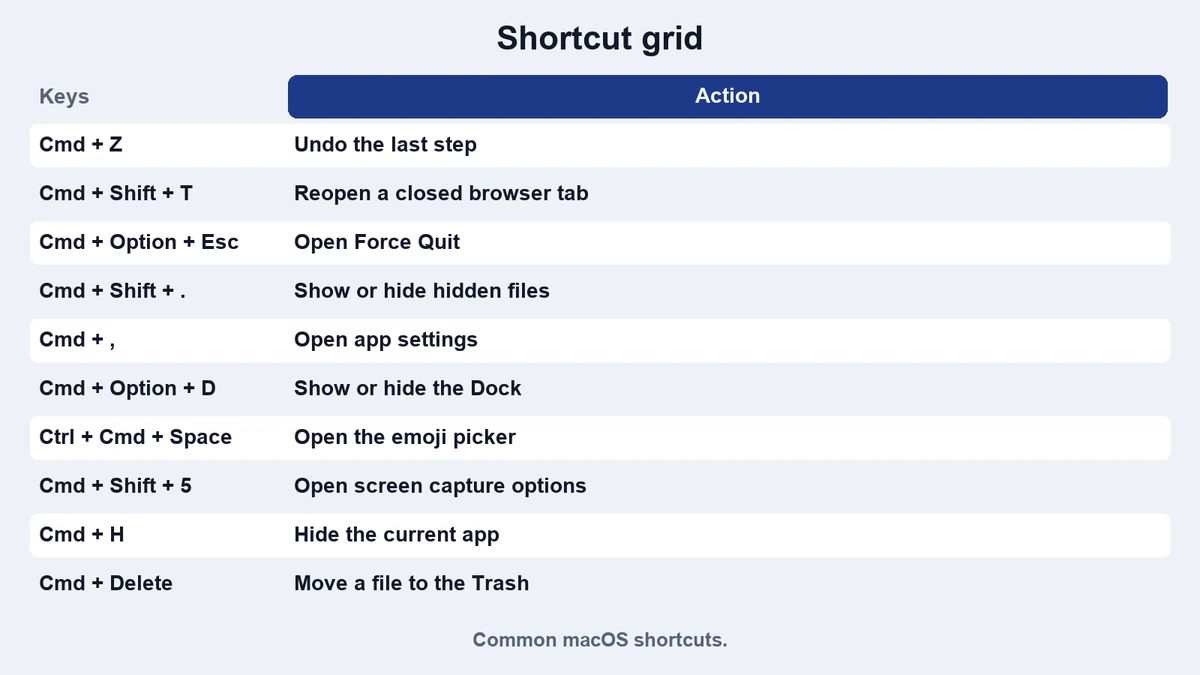
| Keys | What it does |
|---|---|
| Command + Shift + T | Reopen the last closed browser tab |
| Space on a file | Quick look at a file without opening it |
| Command + Option + Esc | Open the force quit window |
| Command + Shift + 5 | Open screenshot and recording tools |
| Command + Option + D | Show or hide the dock |
| Control + Command + Space | Open the emoji picker |
| Command + Shift + . | Show hidden files in a folder |
| Option + click on volume | Choose the sound output device |
| Command + , | Open settings of the current app |
| Command + H | Hide the current app |
Learn three first
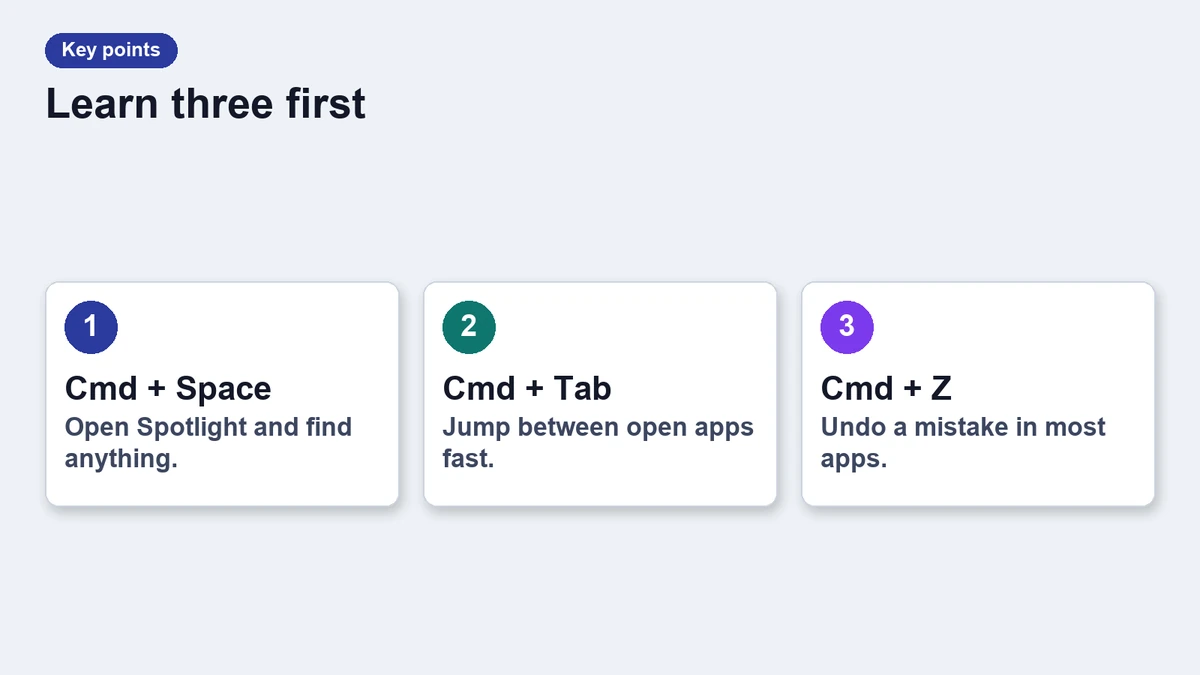
- Reopen a closed tab with Command + Shift + T.
- Preview any file with the space bar.
- Open force quit with Command + Option + Esc when an app freezes.
Why these ones
These keys fix common annoyances. A closed tab, a frozen app and a file you do not want to open are daily problems. Each shortcut removes a few clicks.
Build a habit
Put a sticky note on your desk for a week. Each time you reach for the mouse, check if a shortcut exists. After seven days the first three will feel natural.
Go further
Our guide to hot corners and shortcuts shows how to add your own. If you want to reduce clutter at the top of the screen, try the menu bar routine.
Shortcuts differ slightly between app versions, so check the menu of an app if one does not work. The menu bar shows the keys next to each command.
Shortcuts for left handed typing
Some shortcuts are awkward on a small keyboard. If your hands cramp, map a few of them to a spare key with a keyboard setting, or use an app that lets you record your own combinations.
Learning fewer shortcuts well beats memorizing a long list. Review the grid once a month and swap one key for a new one.
Frequently asked questions
Do these work on every Mac?
Most do. A few depend on the app or system version.
Can I change a shortcut?
Yes, in the keyboard section of system settings.
What if a shortcut conflicts with an app?
Change the app shortcut or the system one so they differ.
Which shortcut saves the most time?
For many people it is reopening a closed tab.