How to Speed Up an Older Mac With Simple Checks
An older Mac often feels slow because of full storage, too many startup items and heavy browser use. This demo guide gives a five step checkup: free storage, trim startup apps, tame browser tabs, install updates and restart weekly. Each step takes a few minutes and needs no extra software.

Quick viewCollapseExpand
An older Mac rarely needs a replacement to feel better. Most slowdowns come from a few simple causes. This demo guide walks through a five step checkup.
The five step checkup
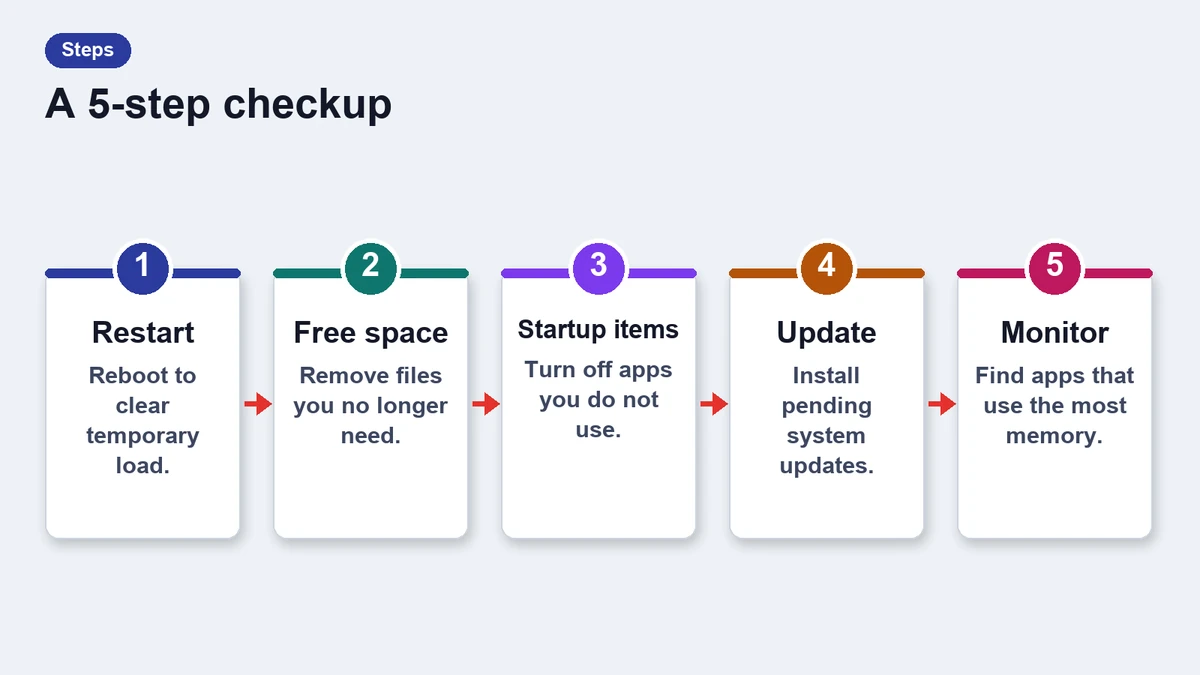
- Free storage: keep at least a fifth of the disk empty.
- Trim startup items: remove apps you do not need at login.
- Tame the browser: close tabs and remove unused extensions.
- Install updates: system and app updates fix many bugs.
- Restart weekly: it clears memory and stuck processes.
What to check and why
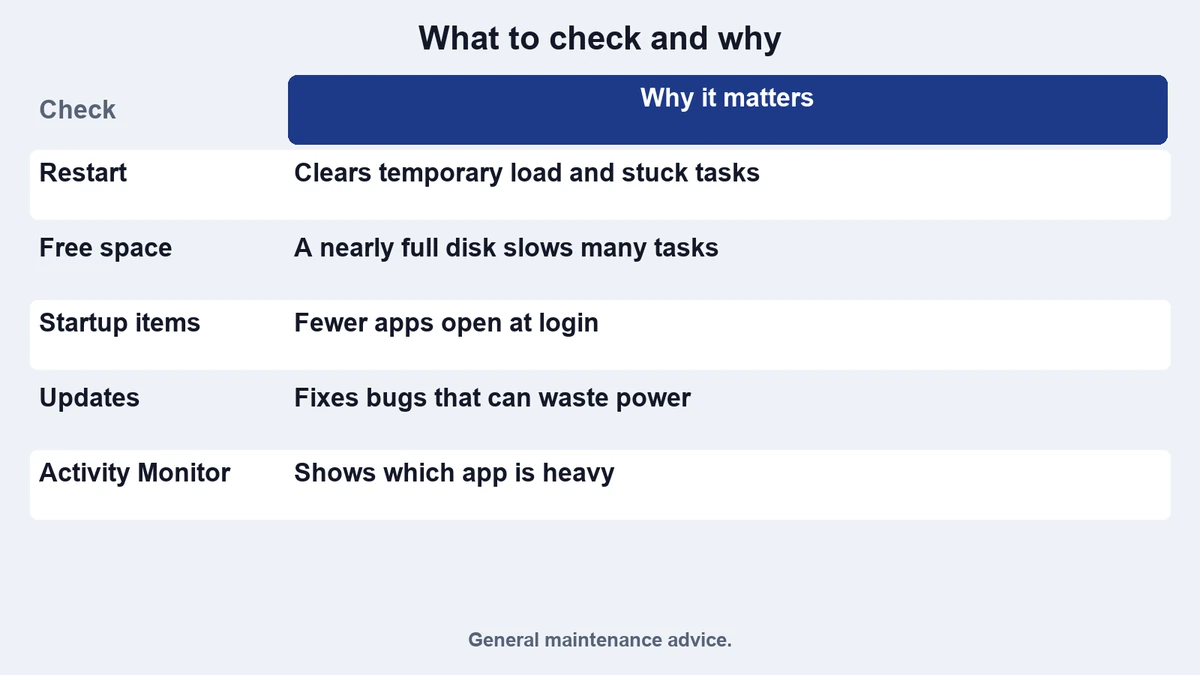
| Check | Why it matters | How long it takes |
|---|---|---|
| Free disk space | A nearly full disk slows everything | 10 minutes |
| Login items | Many apps start at once and compete | 5 minutes |
| Browser tabs | Each tab uses memory | 2 minutes |
| Updates | Fixes bugs and performance issues | 15 minutes |
| Restart | Clears memory and stuck processes | 2 minutes |
Storage first
Open the storage view in settings and look at what takes the most room. Large videos and old downloads are the usual suspects. Move them to an external drive or delete them.
Startup items and background apps
Open the login items list and remove anything you do not need right away. Menu bar utilities are fine, but keep only the ones you use. Our menu bar guide explains how to cut the rest.
When it is time to upgrade
If the checkup does not help, the hardware may be the limit. Look at the memory and storage type. Older machines with spinning disks gain the most from a move to solid state storage, where the model allows it.
This page is a demo, so treat the advice as general. Always back up before you change anything.
Signs that it is not the Mac
If only one app is slow, the cause may be the app and not the system. Check for updates to that app, and try a clean profile if it offers one. If a website is slow, test it in another browser before you change anything else.
Heat and fan noise can also point to a blocked vent or a runaway process. Open the activity view, sort by processor use and see what stands out. Closing one heavy app often fixes the problem.
Frequently asked questions
How much free space should I keep?
Aim for about twenty percent of the disk.
Is it safe to remove login items?
Yes, you can add them back at any time.
Do cleaning apps help?
Usually not more than the steps above.
How often should I restart?
Once a week is a good habit.