How to Organize the Mac Menu Bar Without Clutter
To organize a crowded Mac menu bar, decide which icons you use daily, hide the ones you check sometimes and remove the rest. Reorder what is left by holding the command key and dragging. This demo guide walks through four steps and shows how to keep the bar tidy over time.

Quick viewCollapseExpand
A crowded menu bar makes it hard to find the one icon you need. The fix takes about ten minutes. This demo guide shows a simple routine you can repeat every few months.
Step by step
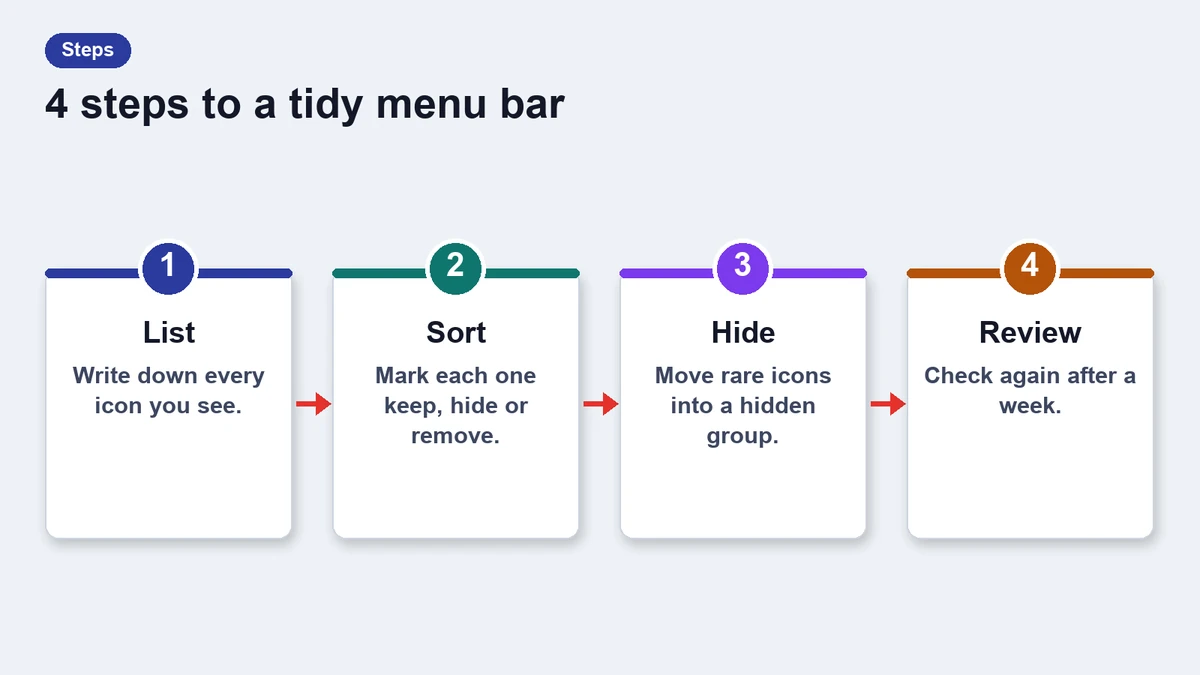
- Audit: list every icon and note how often you click it.
- Hide: move rarely used icons into a tray or turn them off in settings.
- Reorder: hold the command key and drag icons into a logical order.
- Review: look again after a week and remove what you did not miss.
Decide what to keep
Keep icons that give you information at a glance, such as battery, sound and a calendar. Keep controls you use several times a day. Everything else can live in a tray or a launcher.
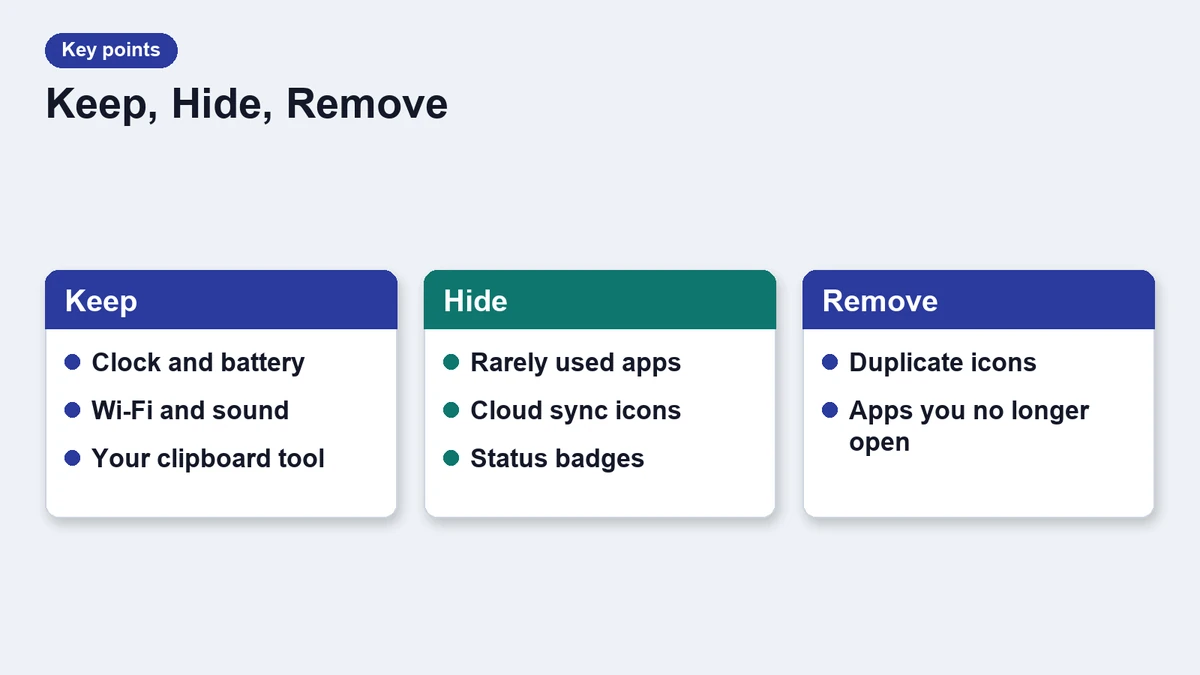
A simple keep, hide, remove rule
- Keep: used daily or shows live status.
- Hide: used weekly, no need to see it all day.
- Remove: not used in a month, or the app can start without an icon.
Use the built in tools first
The system lets you hide many icons from its own settings. Open the menu bar section, switch off what you do not need and set the clock style you prefer. Start here before adding any extra utility.
If the bar is still full, a menu bar manager can collapse icons behind a single button. Compare a few options in our news story on menu bar utilities before choosing.
Keep it tidy over time
New apps love to add an icon. When you install something, check its settings and switch the icon off if you do not need it. A short review every quarter keeps the bar calm.
Common mistakes
- Hiding an icon that shows a warning, such as a sync error.
- Installing several manager apps that fight each other.
- Forgetting to check what changed after a system update.
Small habits matter more than any single tool. If a menu bar item does not earn its space, remove it.
A weekly five minute routine
Set a calendar reminder for the first Monday of each month. Open the menu bar, look at each icon and ask whether you used it. If the answer is no, turn it off. The routine is short, and it stops clutter from coming back.
If you share the Mac with family members, agree on a rule for new apps. One person installs and configures them, so the bar stays consistent for everyone.
Frequently asked questions
How do I move an icon?
Hold the command key and drag it left or right.
Can I hide every icon?
Most can be hidden, but a few system items always stay.
Do I need a third party app?
Not at first. Try the built in settings, then add a manager if the bar is still crowded.
Will icons come back after an update?
Sometimes. Check the bar after major updates.