How to Set Up Hot Corners and Shortcuts on Mac
Hot corners run a chosen action when you move the pointer to a screen corner, such as showing the desktop or starting the screen saver. Set them in system settings, add a modifier key to avoid accidents, and pair them with a few keyboard shortcuts. This demo guide covers three steps.

Quick viewCollapseExpand
Hot corners are a quick way to trigger an action without touching the keyboard. They are easy to set up, and easy to trigger by accident, so a few settings matter.
Set a hot corner in three steps
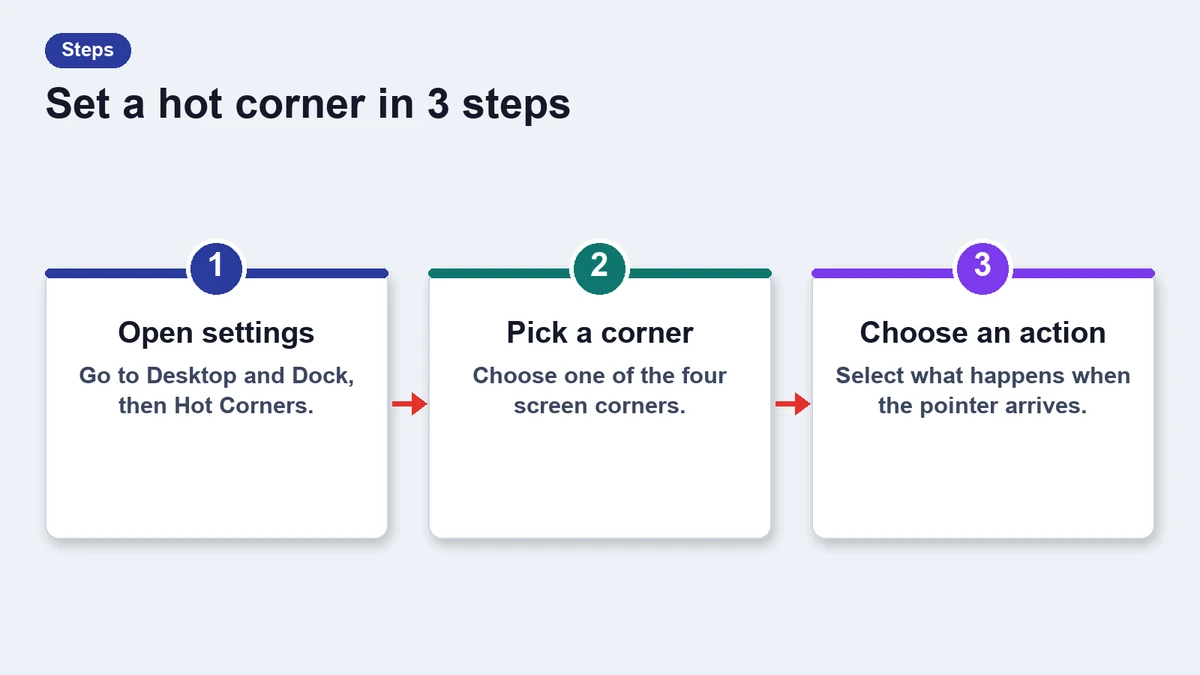
- Open system settings and find the desktop and dock section.
- Choose hot corners and pick an action for each corner you want.
- Hold a modifier key while choosing, so the corner only works when you press it too.
Good actions for each corner
Most people use two corners at most. Pick actions you would otherwise reach for with the trackpad.
- Top left: mission control to see all windows.
- Top right: show the desktop for a quick look at files.
- Bottom right: lock the screen when you step away.
- Bottom left: leave empty to avoid accidents.
Shortcut cheat sheet
Shortcuts are faster than corners once you know them. This table lists six common ones. They are generic examples for the demo.
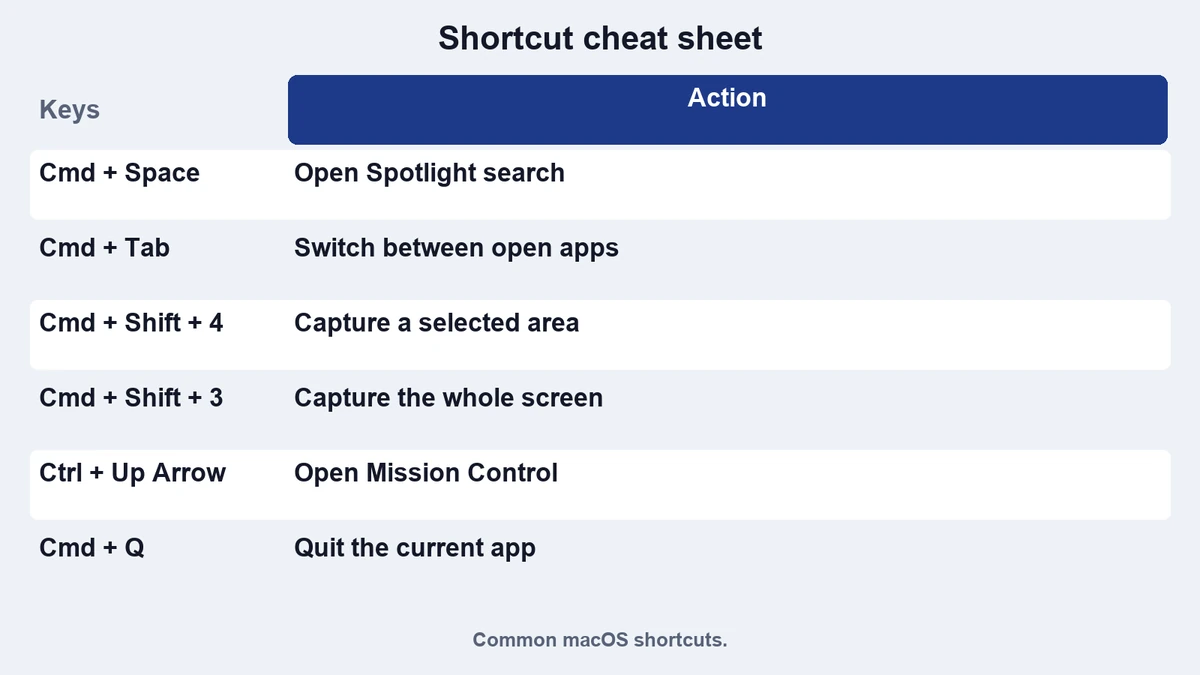
| Action | Keys | Notes |
|---|---|---|
| Show desktop | Fn + H | Press again to return |
| Switch apps | Command + Tab | Hold to see all apps |
| Screenshot area | Shift + Command + 4 | Drag to select |
| Spotlight search | Command + Space | Type and press return |
| Close window | Command + W | Keeps the app open |
| Quit app | Command + Q | Closes every window |
Avoid accidental triggers
If a corner fires when you do not expect it, add a modifier key or remove that corner. Trackpad users often hit the bottom corners while scrolling, so keep them empty.
Pair this with a tidy bar. Our menu bar guide shows how to reduce clutter, and the shortcut list has more keys to learn.
Make it a habit
Pick one corner and one shortcut this week. Use them for several days, then add another. A small set you remember beats a long list you forget.
When corners are not enough
Hot corners work best for one or two actions. If you need more, use keyboard shortcuts or a launcher. Many people combine a corner for showing the desktop with a shortcut for switching apps, and that pair covers most days.
Test each setting for a few days before you decide. If you notice accidental triggers, change the action or add a modifier key. Settings are easy to undo, so experiments are safe.
Frequently asked questions
Can I use a hot corner with a modifier key?
Yes. Hold the key while choosing the action in settings.
What if I trigger corners by mistake?
Add a modifier key or clear that corner.
Do shortcuts work in every app?
System shortcuts do, but some apps override them.
Where do I change shortcuts?
Open the keyboard section of system settings and choose shortcuts.
Updates
- 2026-11-09: Demo page refreshed for layout testing.